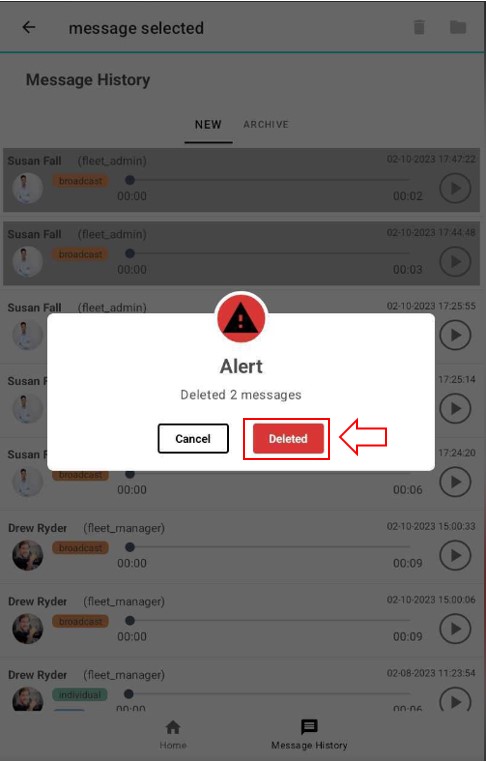
Replying, archiving, and deleting messages
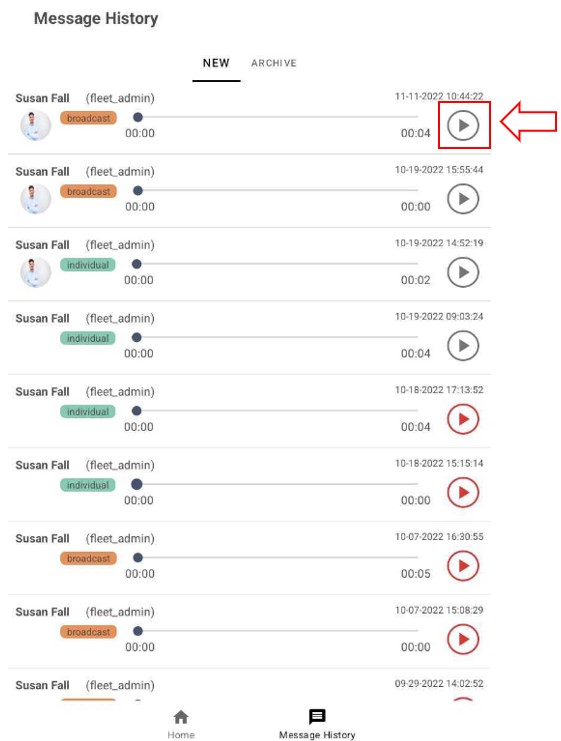
The Message History view has two taps with your message list. The first with your new messages and the second with your archived messages. In each message you can see, who send you the message, the type of message, the date of creation, and the duration of the message.
To listen to your message, click on the button with the play icon, and the playing begins. If you didn't listen to some messages the icon will be in red.
Replying to messages
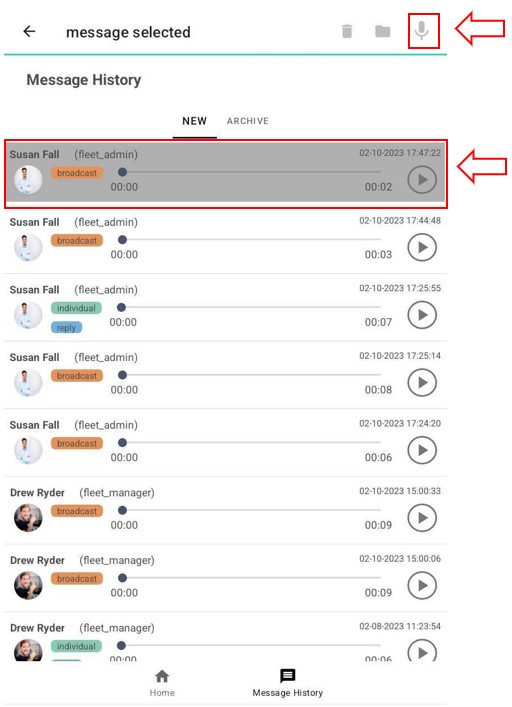
To reply to a message, select the message and press the reply icon at the top.
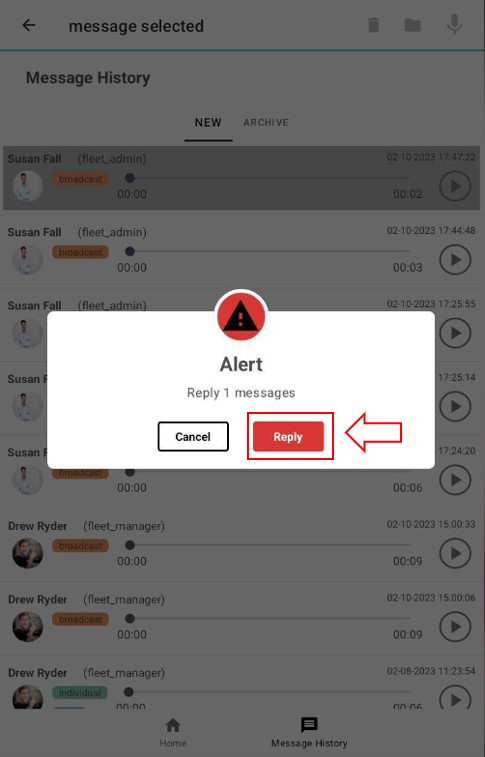
A popup alert will be displayed with the two buttons. Select the Reply button.
Once the button is pressed, the assistant will ask: What is your reply? and the following popup will displayed indicating the message is being recorded.
The recording time limit is 10 seconds by default. You can change this to any amount under the Options menu.
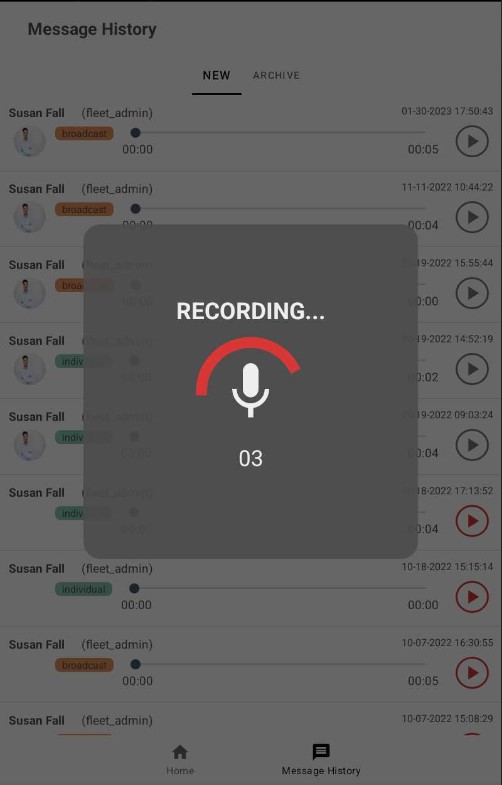
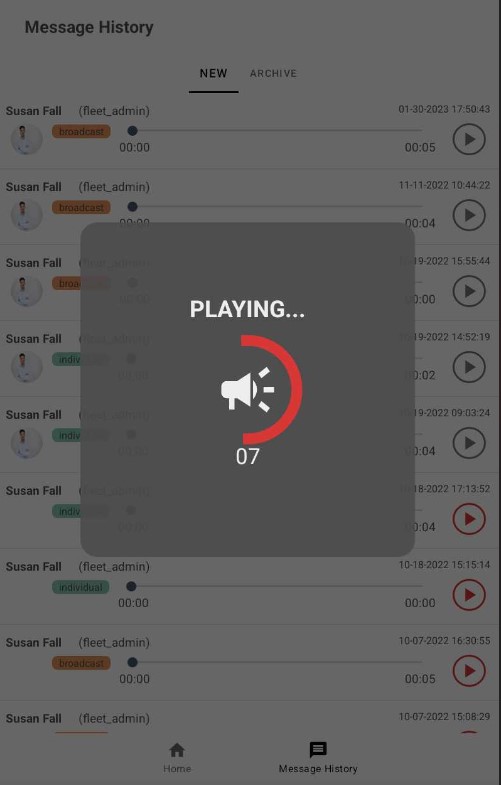
When the recording times out, the assistant will announce: This is your recorded message and play it back.
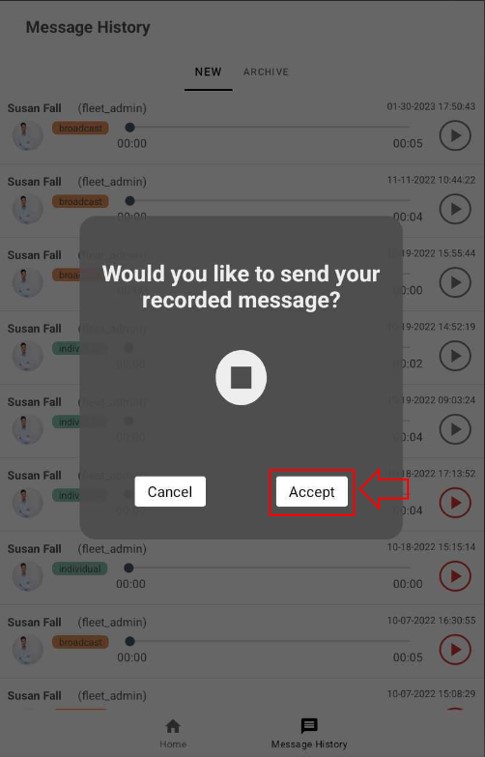
At the end of playback, the following popup will be displayed and the assistant will ask: Would you like to send your reply message?. You can say "Yes" to send or "No" to discard the message.
Archiving a message
To archived a message, select the messages to be archived and press the folder icon on top. You can select one or more messages to archived.
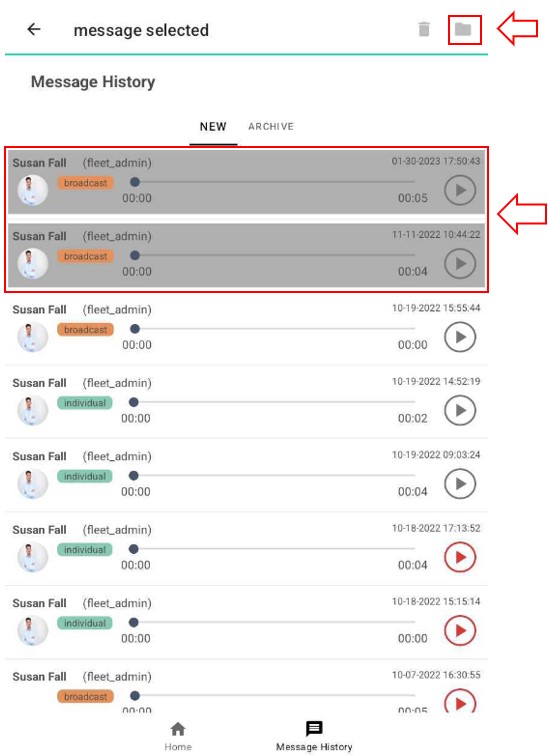
A popup will display the number of messages to be archived and two buttons. You can confirm or cancel.
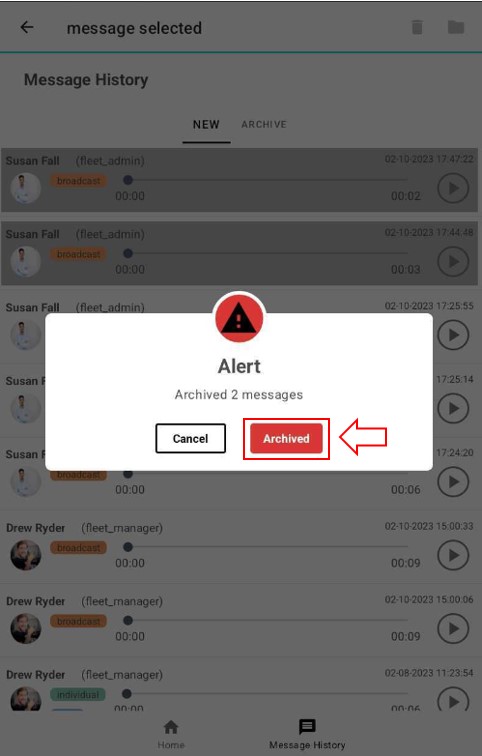
To see your archived message, select the ARCHIVE tab.
Deleting messages
To delete a message, select the messages to delete and press the delete icon at the top. You can select one or more messages to delete simultaneously.
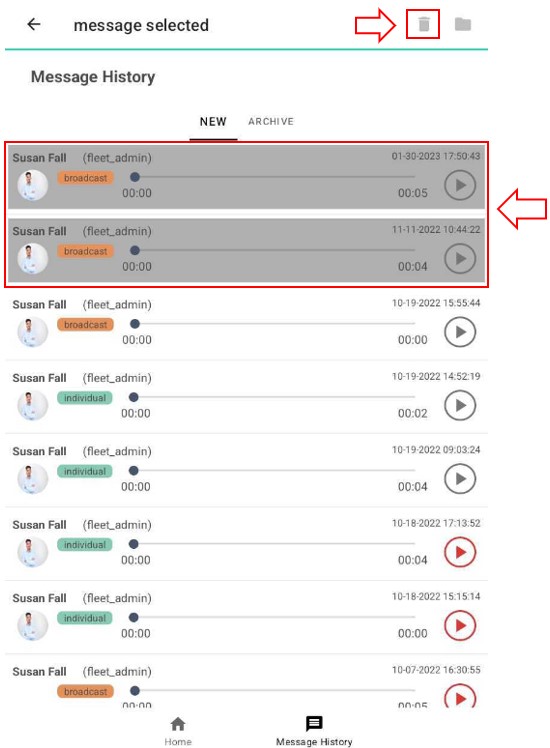
A popup alert will display the number of messages to be deleted and two buttons. You can confirm or cancel.